The Artisans League allows you to create and manage your Photo Albums through your Member Profile.
Member Photo Albums may be visible on the website in your Member Directory listing and Photo Albums. you may choose to make your album visible to the public or to members only.
In your Member Profile, under Your Website Functions, choose Photo Albums.
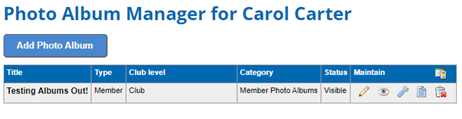
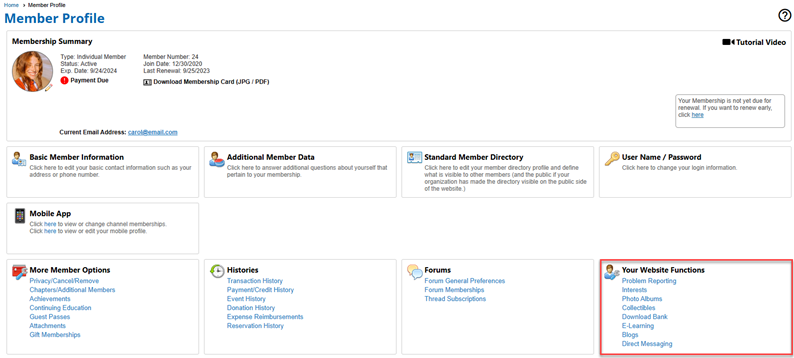 Click Add Photo Album to create a new album.
Name your album. IMPORTANT: The name must start with artist's name to identify the artist. Otherwise we won't know whose album it is. The system will automatically apply the name you choose as the Menu Text, or you can leave it as-is.
Created by: Please include the your name in the Created by box.
Availability: If you want only members to see your album, choose Members Only from the Availability dropdown. Otherwise any website visitor will be able to see your albums.
You don't need to enter a Quick Link name for the album unless you plan to provide a link to the album outside of your website. Contact your website administrator if you have questions.
Add an optional album description, then click Save to save your changes. If you need to edit the album in the future, click the Configure (wrench) icon in the Maintain Column.
When you add photos to the album, you can add a longer, formatted description. Look for the Long Description button.
Adding Photos to Your Album
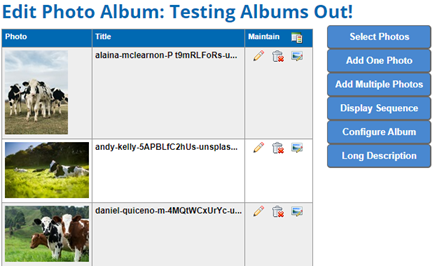
Once you've created your album, it's time to add photos. Click the Edit icon in the Maintain Column for your new album.
Choose Add One Photo. Choose the image from your device, then add details for the image. IClick Save to add the photo. Choose Add Multiple Photos. Choose the images from your device. When you add images, you'll see new fields to assign titles to each.
Each photo has a maximum screen pixel size of 600.
Change the order of photos in the album using the Display Sequence button.